
- This topic is empty.
Viewing 1 post (of 1 total)
-
AuthorPosts
-
July 15, 2020 at 7:20 pm #5178
PartnerClubAdmin
KeymasterTo Save your Certificate to your computer.
NB: Please note that the certificate on display in this forum topic is only an example and does not show what our certificates look like. All the fields on your certificate will be displayed similarly but the general look and feel will differ.
To save the Certificate to your computer, do the following.
1. Complete the course you are busy with including the final/last lesson. The option to “Finish Course” will then be available, click on “Finish Course”, your certificate will be available immediately. 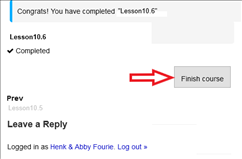
2. To view your certificate, go to any of the menu items at the top right of the website and click on “My Profile”, or go to “Profile” – “My Profile” on the main menu. 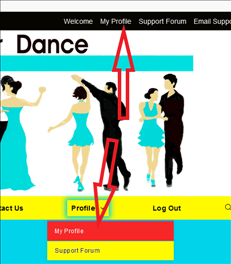
3. Once in “My Profile”, go to “Certificates”. Ensure that the name displayed on the certificate is correct. If not, it is possible to change it yourself. 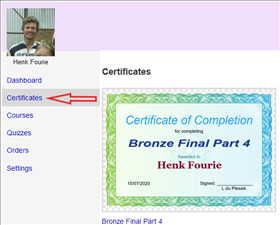
4. Should your name on the certificate be incorrect, go to “Settings/General”, and determine the “Display Name”. 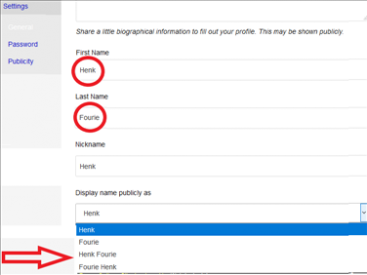
5. To change the Display name, make changes to “First Name” and “Last Name” and Save. 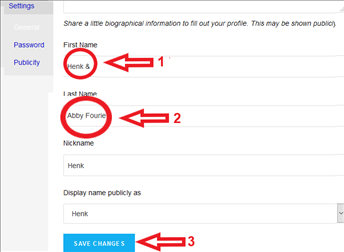
6. Make sure to save changes you made in 5! Select the “Dropdown”, choose the desired “Display Name”, and save again. 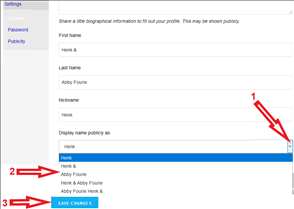
7. Go back to “Certificates”, and ensure that the name you want on the certificate is correct. If not you may change it again. Follow steps 4, 5 en 6. 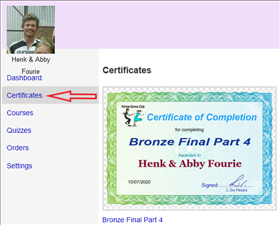
8. If the name and other info on the certificate is correct, either click on the certificate to open it, or right Click on it and open it in a new tab. The full certificate will be displayed as an image in your browser. Right click on the certificate and choose “Save Image As”. Select a file on your device and save the certificate. The certificate may then be printed by yourself or you may send it to a printing co. to have it printed professionally. The choice is yours. 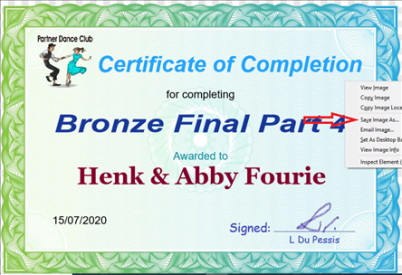
9. Should you and dance partner want two seperate certificates, each with your own name on it, just repeat the above process for each certificate, and save them individually to your computer/device. 
In the event that you are unable save your certificate with the desired display name, feel free to go to the “Contact Us” option in the menu and send us a support email. It is important to explain what you did up to that point and what your result was. We will reply to the email within 24 Hours.
Also feel free to comment on this Forum Topic, any experience you had and comment on, might help someone else.
Please remember to upgrade to the next dance level as soon as possible, see you there!
-
AuthorPosts
Viewing 1 post (of 1 total)
- You must be logged in to reply to this topic.